Portfolio case study

VaultBridge: Document management and desktop sync platform

A secure desktop document management platform that connects local folder sync, role-aware access, storage monitoring, bulk file imports, metadata mapping, and API-backed document operations into one practical workflow for teams moving files at scale.

Name changed to respect NDA.

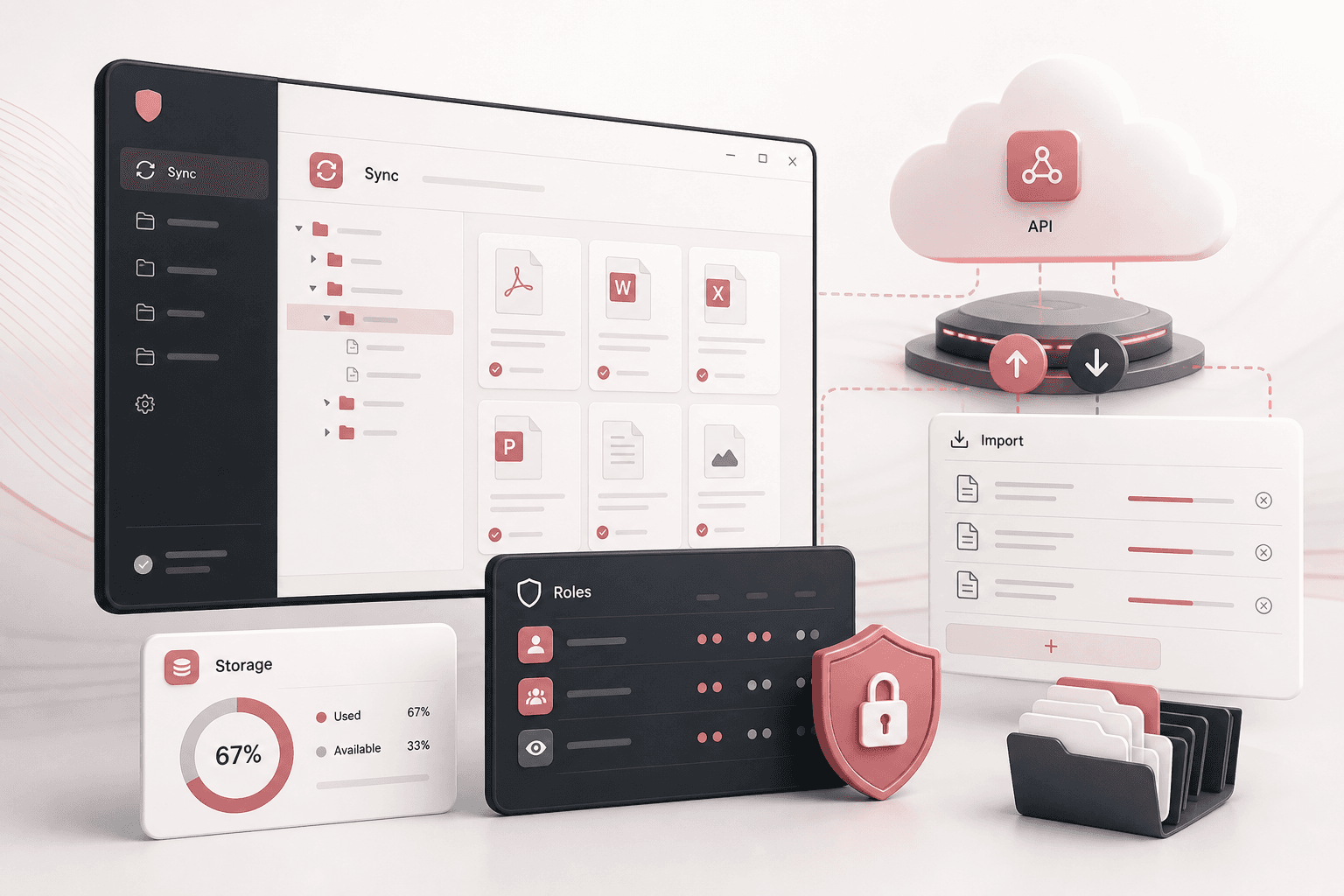
Secure document sync platform visual with desktop folder tree, bulk import queue, cloud API hub, storage meter, and role access controls
Project scope

Windows desktop application engineering, document sync workflows, bulk upload utility, API integration, storage checks, local SQLite state, folder mirroring, metadata mapping, and role-aware document operations

2
connected desktop utilities
Bulk
file import and metadata mapping
Sync
folder mirroring and updates
Roles
access-aware upload controls

Timeline

Desktop document operations platform with sync and bulk import surfaces

Document operations needed to bridge local folders and a cloud file cabinet

The product needed to help teams move large folder structures, document metadata, user-specific storage limits, and day-to-day file changes between Windows desktops and a remote document platform without forcing every action through a browser.

  • Users needed a local folder experience that could mirror remote cabinet folders and files
  • Bulk onboarding needed profile-driven imports, category mapping, delimiter handling, previews, and metadata fields
  • Administrators needed storage visibility, subscription checks, role restrictions, and safe upload boundaries
  • The desktop client needed to track sync state, file status, ignored extensions, rename handling, and failed operations locally

A Windows desktop layer for sync, import, and document operations

VaultBridge combines a desktop sync client with a bulk upload utility so operators can mirror cloud cabinet folders into local Windows workspaces, upload new files and folders, import high-volume document batches, and preserve category or metadata context through API-backed workflows.

  • Desktop sync app creates a user-specific local document folder and stores folder/file state in SQLite
  • Background sync compares local and remote records, downloads missing documents, uploads new folders and files, and handles rename status updates
  • Bulk upload utility reads index files, detects delimiters, previews tabular data, maps local fields to remote category fields, and uploads matching documents
  • Storage checks, role checks, notifications, logs, software update flows, and icon overlay registration support day-to-day operations

Product surfaces

What the platform brought together

The work spanned core product operations, daily user workflows, data-heavy coordination, and resilient platform management.

Desktop folder sync workspace

The sync app gives users a familiar Windows folder model while preserving the remote cabinet structure and document IDs behind the scenes.

  • Creates a per-user local document directory under the Windows documents folder
  • Mirrors cabinet folders, nested subfolders, renamed folders, and document references into local SQLite state
  • Lets users choose which top-level folders participate in sync through a settings list

Upload and download engine

A background worker coordinates remote folder discovery, missing-file downloads, local scans, uploads, and status updates without blocking the desktop UI.

  • Downloads missing documents through authenticated API calls and writes them into the matching local folder path
  • Scans selected local folders for new directories and files, then creates remote cabinet records or document uploads
  • Tracks download, upload, rename, and current-version states so future sync cycles know what changed

Bulk import and metadata mapping

The companion bulk upload utility turns structured index files and source folders into repeatable import profiles for large document sets.

  • Supports local folder selection, text index files, delimiter detection, preview grids, and saved profile files
  • Maps columns such as file path, category, virtual path, and custom fields before upload
  • Converts files to API payloads with category IDs and field metadata for the remote document system

Storage, roles, and operational controls

The apps keep user actions aligned with subscription storage, role restrictions, ignored extensions, startup preferences, and notifications.

  • Checks storage usage before uploads and shows status messages when account limits are reached
  • Restricts upload and folder sync actions for roles that are not allowed to modify documents
  • Stores settings for ignored extensions, delete behavior, startup sync, notifications, and sync mode

Module depth

Dedicated product blocks for the highest-value workflows

For large platforms, the conversion story depends on showing how each major module solves a specific operating problem, not only listing features.

Sync layer

Local Folder Experience For Cloud Documents

VaultBridge treats the desktop as an operating layer for cloud documents. Remote cabinet folders are mirrored into a user workspace, while local folder additions and file changes can be promoted back to the document platform.

Conversion value: buyers can see a practical bridge between legacy desktop behavior and cloud document workflows instead of a browser-only file manager.

  • Remote cabinet discovery and nested folder mapping
  • SQLite-backed state for folders, files, parent IDs, document IDs, and sync status
  • Background upload and download cycles with progress messaging
  • Local folder creation when remote folders or documents are missing on disk

Migration layer

Profile-Driven Bulk Uploads With Field Mapping

The bulk upload utility gives operators a repeatable path for importing document batches, assigning categories, preserving virtual paths, and attaching metadata from structured index files.

Conversion value: the case study speaks to document migration, compliance archives, office digitization, and high-volume onboarding work where manual uploads become a bottleneck.

  • Reusable import profiles for source folder, index file, delimiter, category, and mapped fields
  • Preview and validation before upload so teams can catch delimiter or mapping issues early
  • Category lookup and custom metadata field submission during file upload
  • Virtual path construction that keeps imported documents organized after upload

Control layer

Storage-Aware And Role-Aware Operations

The desktop tools check user storage availability, role eligibility, ignored file extensions, startup behavior, and notifications before allowing high-impact document actions.

Conversion value: buyers can see that the app was built around operational guardrails, not only raw file transfer.

  • Storage usage checks and visible account-limit messaging
  • Role-based restrictions around upload and sync capabilities
  • Settings for ignored extensions, notifications, startup sync, and delete behavior
  • Logging and software-update flows for maintainable desktop deployment

Buyer priorities

What mattered most to the people evaluating the platform

Prospective buyers want to know whether the work solved real workflow, adoption, reliability, data, and operations problems. These priorities shaped the product decisions.

Bulk onboarding

Teams with existing folders and index files need a faster migration path than manually uploading one document at a time.

  • Batch import profiles preserve folder, category, and metadata intent
  • Preview grids reduce bad uploads caused by delimiter or column mismatch
  • Virtual paths help imported files land in the right operational structure

Desktop adoption

Document-heavy teams often still work from local folders, so the product needed to meet users where they already manage files.

  • Local document directories mirror remote structures in a familiar Windows workflow
  • Background sync keeps routine file movement out of browser-only workflows
  • Notifications and logs make ongoing sync activity understandable to non-technical users

Operational guardrails

Document systems need access, storage, and file-type controls so convenience does not create uncontrolled data movement.

  • Storage checks stop uploads when account limits are reached
  • Role restrictions prevent unauthorized document modification
  • Ignored extension settings reduce noisy or unsupported file transfer

System model

How the platform connects roles, workflows, and product surfaces

The product architecture brings every role into the same operating model, with shared data moving cleanly between web, mobile, media, and notification layers.

From local folders to managed documents

Files move from local folders through mapping, validation, API upload, storage checks, and remote cabinet records.

Operators, admins, and document users

Bulk upload operators, sync users, administrators, auditors, and support teams work through scoped document operations.

Desktop clients with cloud document APIs

The sync app, bulk import utility, local state store, and remote document APIs work together as one document operations layer.

Technology

The Stack We Used And Why

The stack section is written for buyers who need to understand the product architecture, operational trade-offs, and long-term maintainability of the system.

Desktop applications

Used to deliver Windows-first sync, import, settings, notifications, and update workflows for document-heavy teams.

C#.NET Windows FormsBackgroundWorkerWindows Shell integration

Local state and logging

Used to track selected sync folders, document IDs, parent relationships, settings, sync status, and operational diagnostics on the client machine.

SQLitePetaPocoNLogLocal app settings

Document platform integration

Used to authenticate sessions, list cabinet folders, upload/download files, resolve categories, save metadata, and enforce storage checks.

SOAP service referencesREST APIsJSON payloadsAuthenticated API headers

Bulk import workflow

Used to turn local document folders and structured index files into repeatable import jobs with category and metadata context.

Text index parsingDelimiter detectionProfile filesBase64 file payloads

Why Desktop For Document Sync

The workflow depended on local folders, Windows file paths, background transfers, notifications, and shell behavior that fit a desktop utility better than a browser-only interface.

  • Windows Forms gave the team practical control over settings, dialogs, progress states, and tray notifications
  • Local folder access enabled direct scanning, file writes, downloads, and bulk import preparation
  • Shell integration supported a more familiar document-management experience for users already working in Windows

Why Local SQLite State

Sync needed a durable local record of remote IDs, parent relationships, selected folders, and item statuses between app sessions.

  • Folder and file records keep local paths tied to remote cabinet IDs and document IDs
  • Status flags make upload, download, rename, and current-version decisions repeatable
  • Settings records preserve user preferences for exclusions, startup behavior, notifications, and sync mode

Why A Separate Bulk Utility

High-volume document onboarding has different needs than continuous sync, so the import workflow benefits from its own profile, preview, and mapping screens.

  • Operators can validate delimiters and column mappings before uploading files
  • Saved profiles make repeated import batches less error-prone
  • Category and metadata mapping preserve document context that raw folder sync alone cannot infer

Delivery

How the product came together

The work moved from domain modeling to core platform delivery, mobile adoption, and operational hardening.

1

Model document movement

Identify how folders, files, categories, storage, roles, metadata, and remote cabinet IDs should move between desktop and cloud systems.

2

Build the sync client

Create desktop settings, selected folder lists, local state records, background sync, download, upload, rename, and notification workflows.

3

Add bulk import operations

Create the companion utility for index-file parsing, delimiter detection, profile loading, preview, category mapping, and API upload.

4

Harden desktop operations

Layer in storage checks, role restrictions, logging, software updates, and file-extension exclusions for real-world operations.

Operational depth

What made the platform usable after launch

The strongest case studies are not only feature lists. They show how the system is operated, monitored, governed, and improved when real users depend on it.

Sync status model

The app uses explicit item status values to decide whether local records should download, upload, rename, or stay current.

  • Folder and file records include remote item IDs, parent IDs, document IDs, paths, names, and status flags
  • Remote folder discovery updates local state before each sync pass
  • Local scans insert new upload candidates when users add folders or files on disk

Document metadata preservation

Bulk imports can carry more than file bytes by preserving category, virtual path, and mapped field values from index data.

  • Index headers can map to file path, category, virtual path, and custom metadata fields
  • Category lookups resolve human-readable category values into upload-ready category IDs
  • Metadata field submission keeps imported documents searchable and structured after upload

User-facing guardrails

Storage availability, role validity, ignored extensions, and notification preferences shape what users can safely do from the desktop.

  • Storage meter and full-storage warnings prevent failed high-volume uploads
  • Role checks hide or block actions for users without document modification rights
  • Ignored extension lists reduce unnecessary sync noise and unsupported file transfer

Results

The measurable and observable lift from the work

The strongest improvements are the ones a buyer can connect to daily work: fewer disconnected tools, safer operations, clearer workflows, and more reliable product behavior.

Desktop + import

Two-Surface Workflow

A sync client handles ongoing document movement while a bulk utility handles structured migration and onboarding batches.

Metadata-aware

Structured Imports

Index files, categories, virtual paths, and custom field mappings keep bulk uploads useful after the files land in the document system.

Stateful sync

Reliable Operations

SQLite records and status flags give the desktop app a durable way to reconcile local folders with remote cabinet records.

Guarded uploads

Operational Control

Storage checks, role checks, ignored extensions, logs, and notifications help document teams move files without losing control.

Outcome

A stronger operating system for document management and desktop sync platform

The platform reduced tool fragmentation and gave each role a clearer path from live activity to day-to-day action.

A Windows desktop sync app for local folder mirroring, remote document downloads, new file uploads, selected sync folders, storage checks, role restrictions, and user settings

A companion bulk upload utility for high-volume document import with index files, delimiter detection, preview grids, reusable profiles, category lookup, virtual paths, and metadata mapping

A local SQLite sync model that tracks folders, files, parent relationships, remote item IDs, document IDs, paths, settings, and item status across sessions

A portfolio-ready public narrative that positions the work as a complete document operations platform while excluding private repository names, real screenshots, endpoints, and identifiers

FAQ

Frequently Asked Questions About VaultBridge

Answers about the document management and desktop sync platform scope, platform model, technology choices, operational workflows, and related build patterns.

What Kind Of Platform Does VaultBridge Represent?

VaultBridge represents a secure document management and desktop sync platform with Windows desktop utilities for local folder sync, bulk document import, category and metadata mapping, storage checks, role-aware controls, and API-backed document operations.

Why Would A Document Platform Need A Desktop Sync App?

Document-heavy teams often work from local folders. A desktop sync app lets them keep familiar Windows workflows while still connecting files, folders, storage rules, and document records to a managed cloud platform.

How Does Bulk Upload Differ From Regular Folder Sync?

Regular sync handles ongoing file and folder changes. Bulk upload handles structured onboarding jobs where operators need index files, delimiter validation, preview grids, category assignment, virtual paths, and metadata mapping before uploading many documents.

Can This Pattern Support Legacy Document Modernization?

Yes. The same pattern can support legacy file-share modernization, compliance archives, office digitization, records management, legal document intake, healthcare document workflows, and document migration products that need desktop adoption plus cloud control.

Related services

Build a similarly ambitious product without starting from a blank page.

We can help scope the web, mobile, AI, media, and operating layers needed for your own platform.

Start a project inquiry