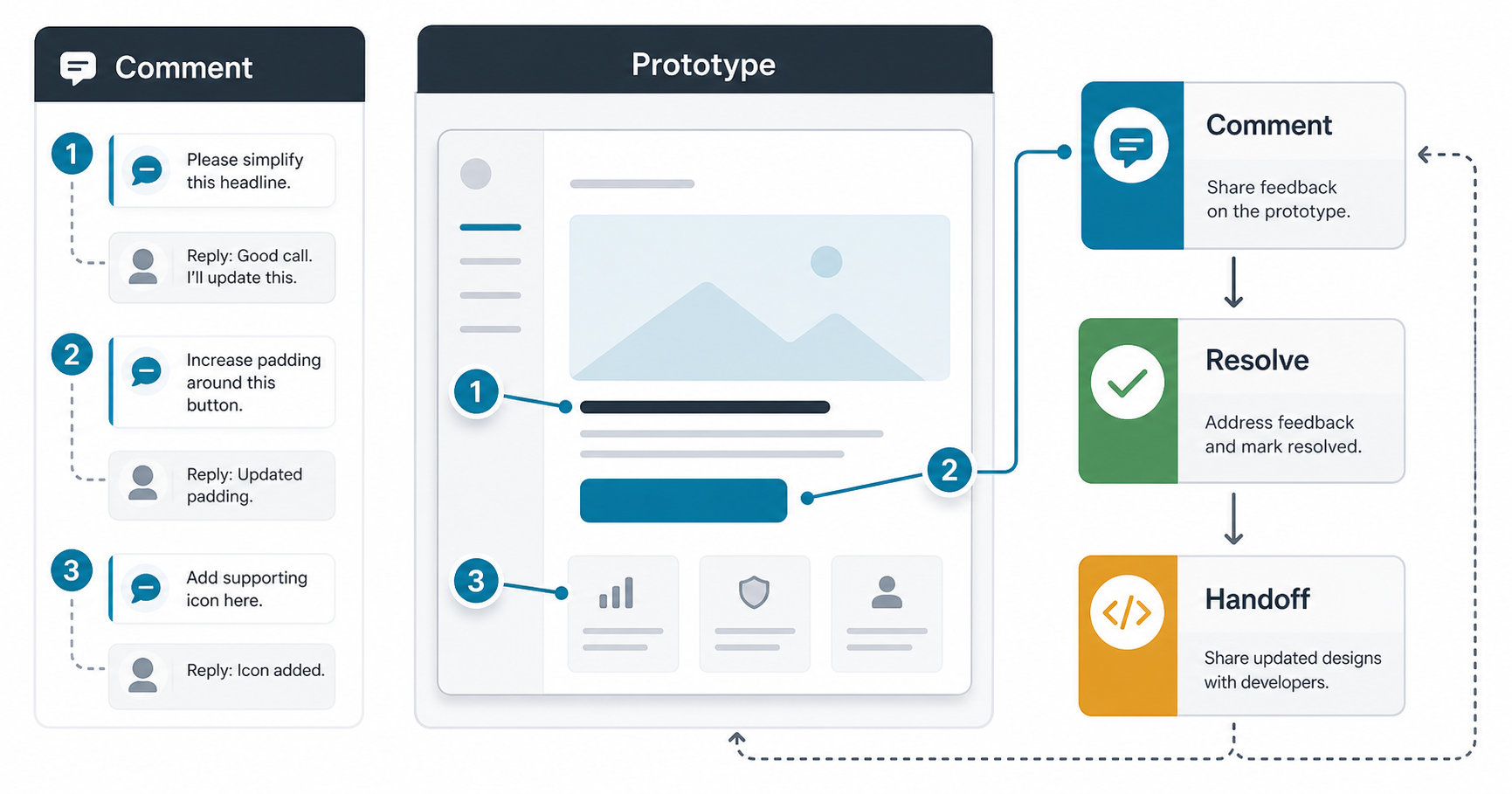

InVision made prototype comments popular because it let clients, designers, and developers discuss a screen in context instead of trading long email threads. The product is now a legacy reference rather than a current collaboration platform: InVision announced that its design collaboration services would shut down at the end of 2024, so teams should treat old InVision workflows as historical guidance and use the same feedback habits in modern tools such as Figma, Miro, or their product-review stack.
The practical answer is still useful: good prototype feedback is specific, placed on the right screen, tied to a user goal, and resolved into a design or development decision. If the prototype is part of a larger web app development or mobile app development project, comments should help the team reduce ambiguity before engineering starts.
Quick Answer: How Do You Leave Useful Prototype Comments?
To leave useful comments in an InVision-style prototype review, open the shared prototype, enter comment mode, click or tap the exact area that needs feedback, write a concise note with context, mention the right owner when needed, attach a sketch or screenshot if words are not enough, and mark the thread resolved only after the decision is reflected in the design or handoff notes.
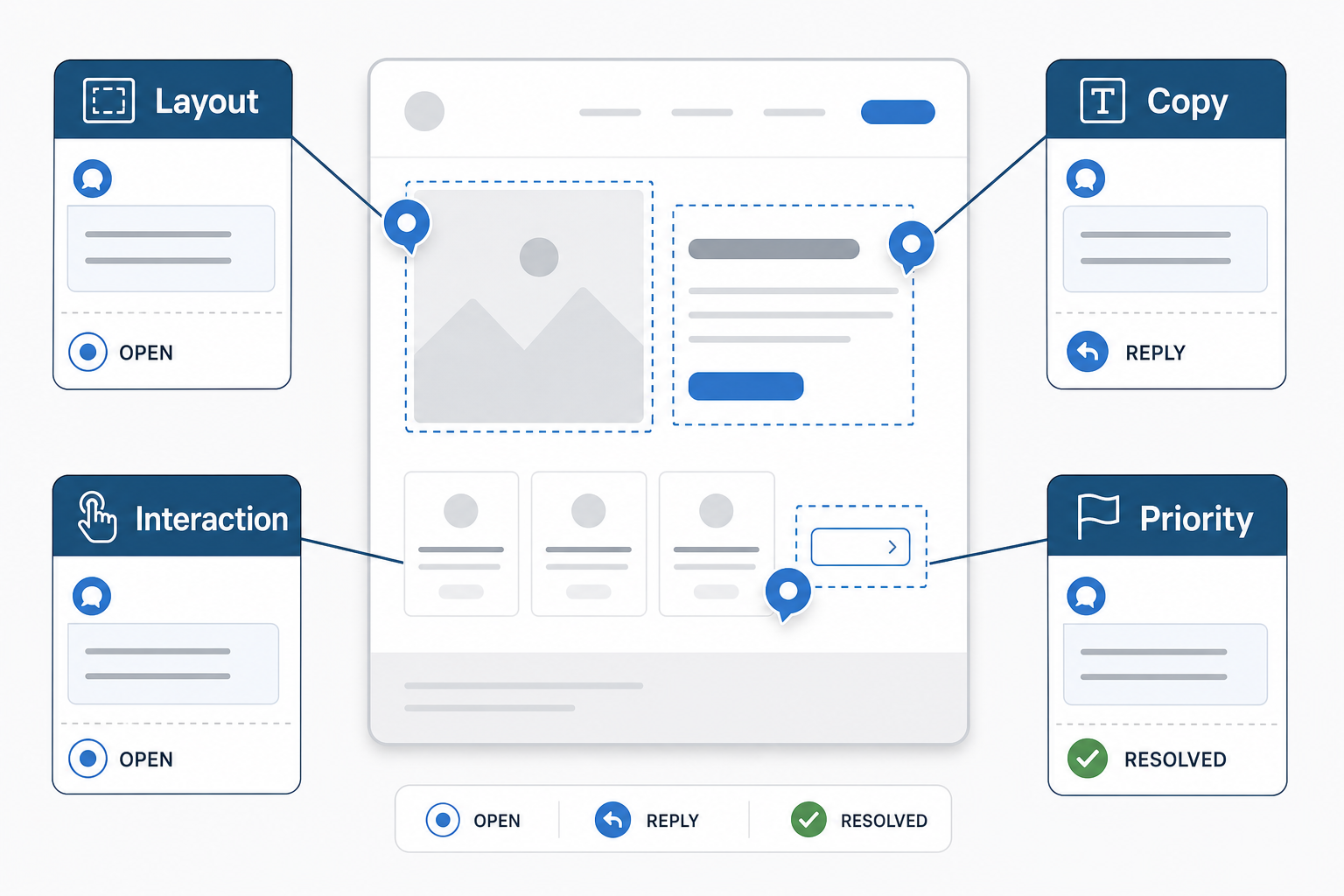
- Be specific: point to the screen, component, copy, interaction, or state that needs attention.
- Explain the reason: connect the comment to a user goal, business rule, accessibility need, or implementation constraint.
- Assign ownership: mention the person who can answer or act on the feedback.
- Close the loop: reply with the decision and resolve the comment after the design or ticket is updated.
Is InVision Still Available For Design Comments?
InVision's design collaboration services are no longer the safe default for new prototype reviews. Teams that still have archived InVision material should use this article as a workflow reference, not as a recommendation to start new review cycles in InVision. For active projects, use a current design review tool and make sure prototype links, comment permissions, export paths, and handoff ownership are clear before the review starts.
This matters because the tool is only part of the feedback system. The deeper process is stable: share the right version, gather comments in context, separate questions from decisions, and convert approved feedback into implementation tasks.
Before You Add Comments
Good feedback starts before anyone clicks on a screen. The reviewer should know what kind of feedback is expected: visual polish, content clarity, user-flow logic, business-rule accuracy, accessibility, or development feasibility. Without that scope, comments often mix opinions, open questions, and late feature requests in one place.
Use a short review brief before sending the prototype link:
- Review goal: what decision the team needs after this review.
- Audience: who the screen is designed for and what they are trying to do.
- Prototype scope: which screens, states, and flows are ready for feedback.
- Out of scope: items that should not be debated in this review round.
- Deadline: when comments must be submitted so the team can move forward.
If the team is still defining the first release, run the scope through the MVP Scope Builder before collecting detailed design comments. It is easier to review a prototype when everyone agrees which workflows belong in the first release.
How To Add Comments In An InVision-Style Prototype
The original InVision mobile and web comment pattern was straightforward: open the prototype, switch into comment mode, click the area you want to discuss, type the note, and post it. Modern tools use slightly different controls, but the review behavior is the same.
- Open the shared prototype link: confirm you are viewing the latest version and the right flow.
- Enter comment mode: use the comment icon or prototype options for the current tool.
- Click the exact location: place the pin on the button, copy block, form field, image, transition, or state that needs attention.
- Write the comment: explain what feels unclear, broken, risky, or ready to approve.
- Mention the owner: tag the designer, product owner, engineer, marketer, or client who can answer.
- Reply in thread: keep the decision near the original comment instead of moving it to email.
- Resolve deliberately: close the comment only when the final action is clear.
Use A Comment Quality Framework
A comment such as "this looks wrong" slows the team down because it does not explain what to change. A better comment identifies the object, the problem, the reason, and the expected outcome. The strongest comments also separate preference from requirement.
| Weak Comment | Stronger Comment |
|---|---|
| "This button is confusing." | "The primary button says Submit, but the user is booking a consultation. Can we change it to Book Consultation so the action matches the next step?" |
| "The page feels too long." | "The pricing explanation appears after two proof sections. Can we move the price range higher for users comparing budget before contacting sales?" |
| "Mobile needs work." | "On mobile, the form fields appear below the CTA without context. Can we show one sentence above the form explaining what happens after submission?" |
How To Mention Someone In A Comment
Mentions are useful when the feedback needs a specific answer. Mention a designer for layout or interaction questions, a product owner for scope decisions, an engineer for feasibility or integration risk, and a client stakeholder for approval. Avoid tagging everyone on every thread because it turns the comment system into noise.
A strong mention includes the decision needed: "Can you confirm whether this field is required for onboarding?" is more useful than "Thoughts?" If the comment affects a planned build, link the decision back to the project scope or implementation ticket.
When To Add A Sketch Or Markup
Sketches help when layout, spacing, path, or sequence is hard to explain in words. In InVision, reviewers could draw on the screen or add shapes to clarify the note. In modern tools, use the equivalent annotation, screenshot, or whiteboard feature sparingly.
Use a sketch when you need to show:
- a missing relationship between two interface elements;
- a proposed ordering change;
- a gesture, transition, or edge state;
- a layout correction that would be ambiguous in text;
- a comparison between current and expected behavior.
Do not use sketches to redesign the entire screen inside a comment thread. If feedback changes the user journey, take it back into the design file or product plan.
Using Live Review Sessions Without Losing Decisions
InVision's LiveShare-style review pattern was useful because teams could talk through a screen together. The risk with live review is that decisions disappear after the call. Keep comments open during the session and capture decisions as thread replies while the context is fresh.
For client-facing reviews, assign one facilitator. That person should guide the prototype, pause for feedback, separate questions from change requests, and summarize each decision before moving to the next screen. This is especially important when the prototype will become a customer portal, dashboard, booking flow, or internal workflow.
Turn Feedback Into A Design And Development Handoff
Prototype comments become valuable only when they change the next version or confirm that a decision is final. After review, group comments into four buckets: accepted changes, rejected changes, open questions, and development notes. This keeps designers from chasing every opinion and helps engineers understand what is ready to build.
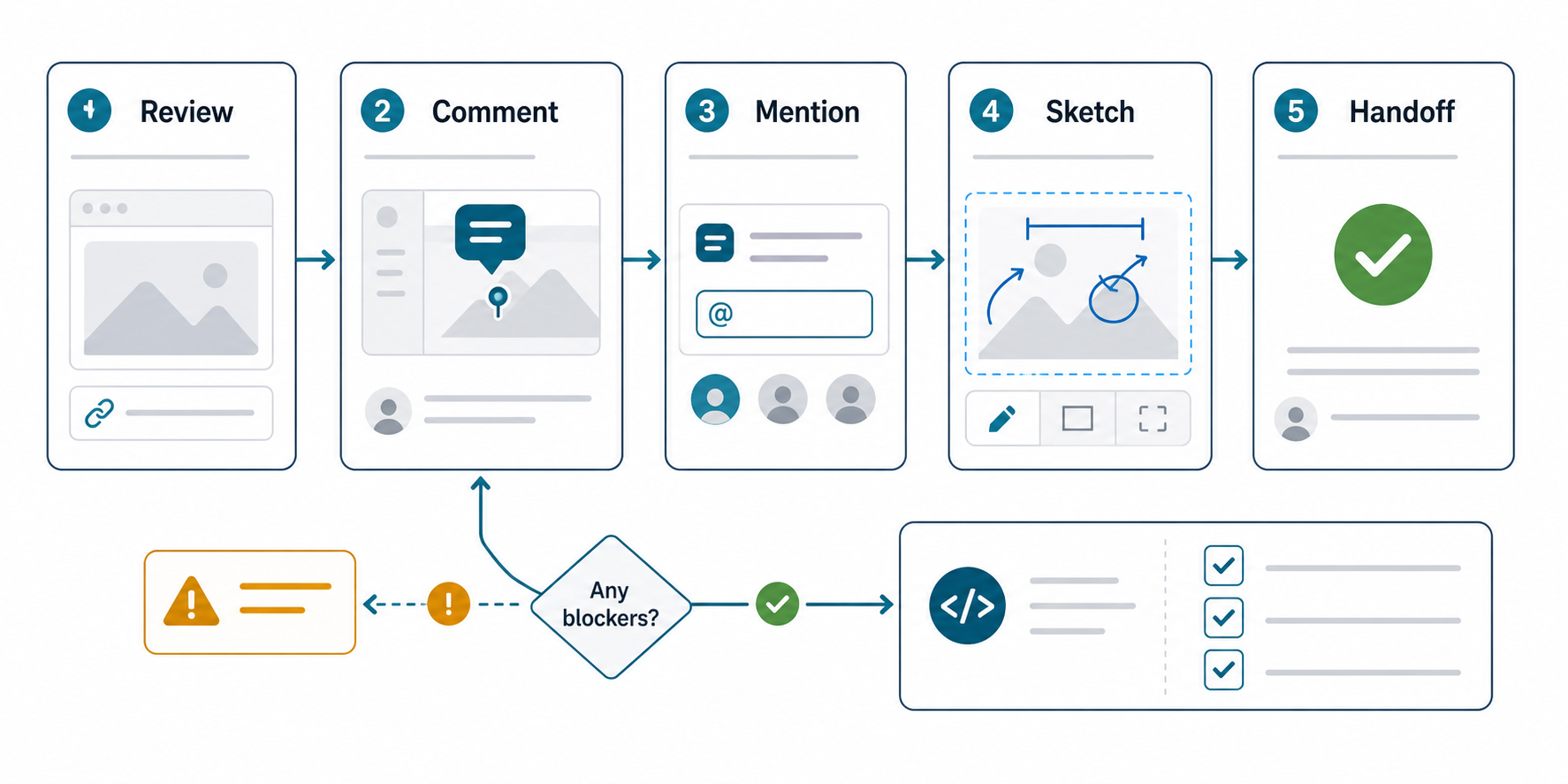
- Review: collect comments on the active prototype version.
- Triage: remove duplicates and group related feedback.
- Decide: accept, reject, or defer each item with a reason.
- Update: revise the design and note what changed.
- Handoff: document behavior, states, assets, copy, and acceptance criteria.
NextPage's FieldIQ case study shows why structured feedback matters in real product work: media review, comments, role-specific workflows, and mobile access all need clear ownership before implementation.
What To Do If Your Team Used InVision Before
If your organization still references old InVision prototypes, first identify whether they are historical artifacts, active requirements, or design evidence for a rebuild. Then move durable decisions into a current system: design files, product specs, tickets, documentation, or a client-approved handoff pack.
Do not migrate every old comment blindly. Archive what explains past decisions, rewrite what affects the current product, and discard outdated preferences. If the rebuild will involve new user journeys, revisit user personas in app development before copying old screens into a new tool.
Common Prototype Feedback Mistakes
- Commenting without scope: reviewers debate everything because no one defined the goal of the review.
- Leaving vague notes: comments without reason, owner, or expected outcome create follow-up work.
- Resolving too early: threads are closed before the design, copy, or handoff has changed.
- Mixing bugs and preferences: technical defects, UX decisions, and personal opinions need different handling.
- Ignoring mobile states: many issues appear only on smaller screens, touch interactions, or slow connections.
- Skipping development context: design comments can create hidden scope unless engineering risk is discussed early.
How Prototype Feedback Affects Build Scope
Prototype comments can change budget when they reveal missing states, new integrations, complex permissions, data migration, workflow automation, or admin controls. Treat late comments as scope decisions, not just design polish. A small copy change may be simple; a new approval workflow can affect backend data, QA, permissions, and support operations.
When feedback starts changing the product model, use the custom software cost estimator to reframe the rough complexity before committing to a timeline. That gives stakeholders a better conversation than approving every comment in isolation.
Final Takeaway
InVision helped teams learn an important habit: feedback belongs on the screen where the decision happens. Even though InVision design collaboration is now legacy, the workflow remains valuable. Place comments in context, explain the reason, mention the owner, add sketches only when they clarify, and resolve threads only after the decision is reflected in the design or handoff.
The best prototype reviews reduce uncertainty before development begins. They help clients approve confidently, help designers improve the user journey, and help developers build from clear decisions instead of scattered feedback.