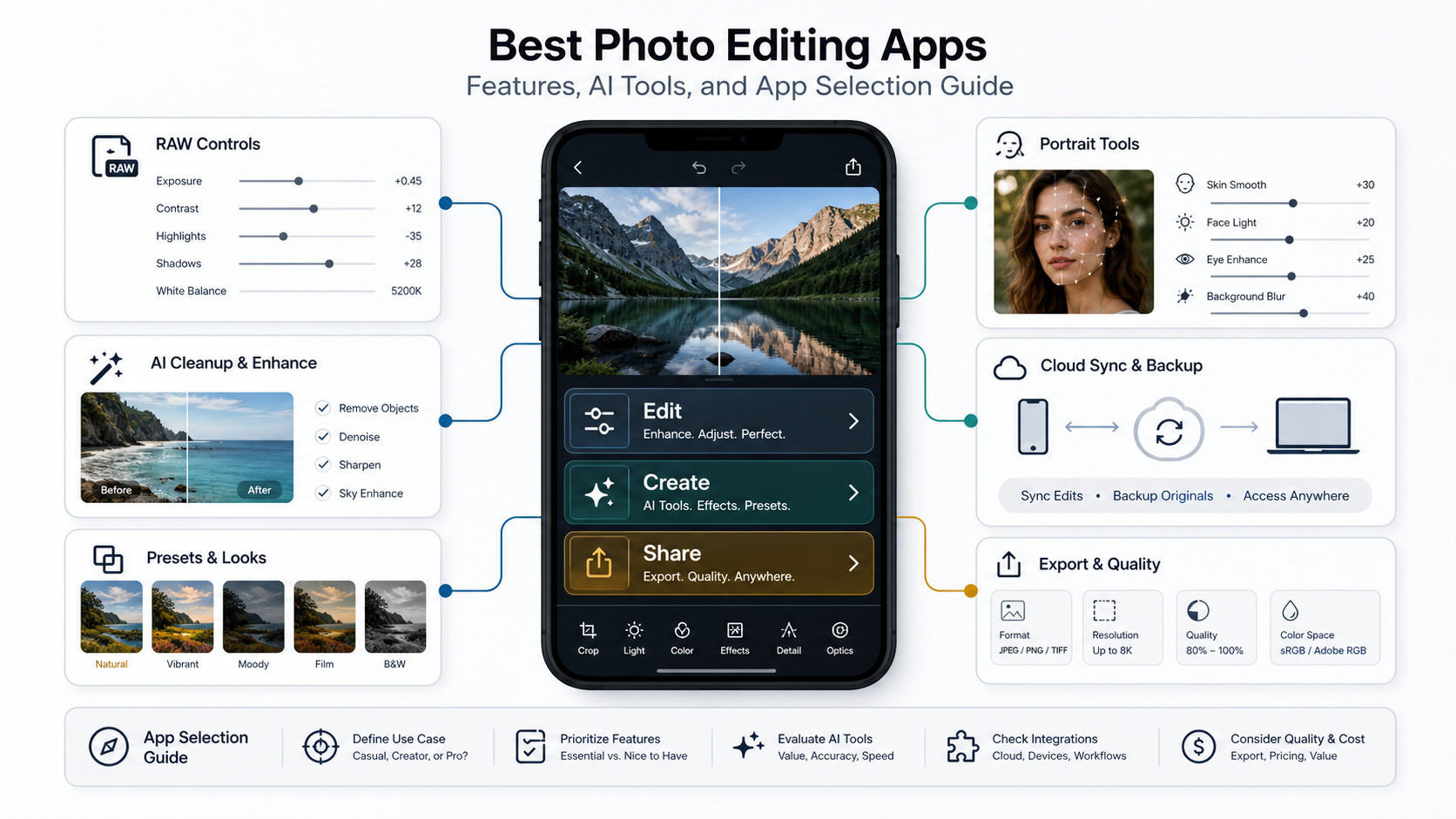

Photo editing apps now do more than crop, brighten, and add filters. The best ones help people move from a raw image to a polished, share-ready visual with less friction, whether they are editing vacation photos, product shots, social media posts, or brand content on a phone.
This guide explains how to choose a photo editing app, where popular tools such as Lightroom, Snapseed, PicsArt, Google Photos, Lensa, and Photoshop Express fit, and what product teams should learn from them when planning a modern editing experience. If you are evaluating a custom product, the same principles also apply to mobile app development decisions around workflow, performance, AI features, and retention.
Quick Answer: Which Photo Editing App Should You Choose?
Choose the app that matches the job you do most often. Lightroom is strongest for detailed color control, RAW files, presets, and professional workflows. Snapseed is a strong free choice for fast, precise edits. PicsArt fits creators who want templates, stickers, collage tools, and social-style effects. Google Photos works well for quick fixes and library management. Portrait-focused tools such as Lensa or Photoshop Express help when retouching faces, lighting, and background blur matters most.
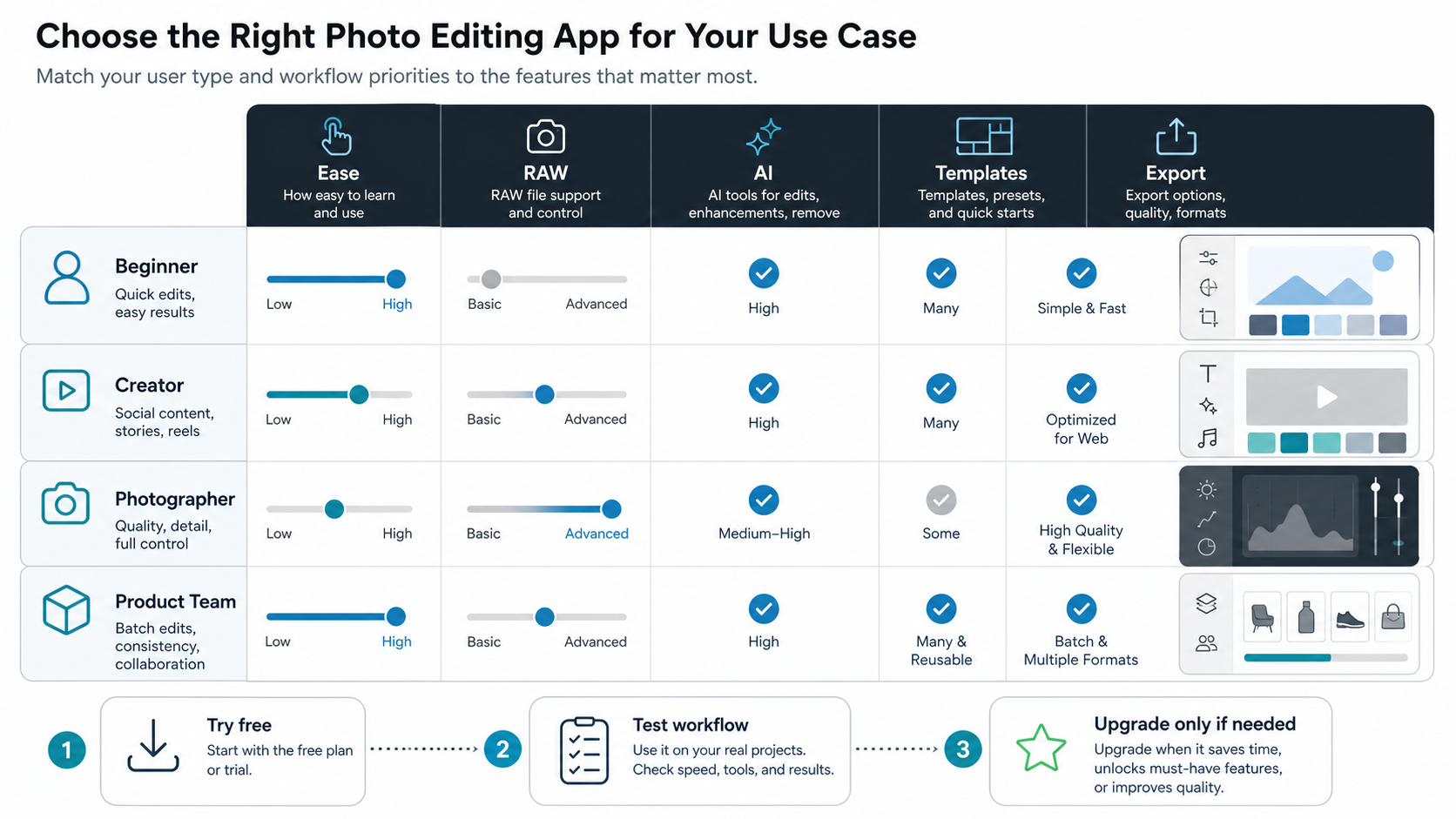
If you are building or improving a photo editing product, do not copy a feature list blindly. Start with user personas, core jobs, and the editing journey. NextPage's guide to user personas in app development is useful here because beginners, creators, photographers, and teams all value different editing flows.
What Makes A Good Photo Editing App?
A good photo editing app combines enough power for serious edits with an interface that does not slow people down. The essential ingredients are simple import, fast previews, non-destructive adjustments, reliable export quality, useful presets, and clear undo history. Advanced users also look for RAW support, selective edits, masking, curves, batch editing, cloud sync, and color consistency across devices.
For most users, the best experience comes from a layered workflow: quick presets for the first edit, manual controls for fine tuning, AI assistance for repetitive tasks, and export settings that are easy to understand. That balance is why many successful apps avoid exposing every tool at once. They reveal power gradually as the user gains confidence.
Lightroom Vs Snapseed: Which One Is Better?
Lightroom is better when editing quality, RAW files, color grading, presets, and cross-device workflow matter. It suits photographers, creators with repeatable brand styles, and users who want deeper control over exposure, color, lens correction, and detail. Cloud syncing is also valuable when a user starts an edit on mobile and finishes it on desktop.
Snapseed is better when the user wants a capable free editor that feels direct and fast. Its selective adjustment tools, healing, curves, and filters give casual editors more control than many basic mobile editors. It is also easier to recommend to someone who wants strong editing tools without committing to a paid ecosystem.
The practical decision is simple: use Lightroom when workflow depth matters; use Snapseed when free, fast, high-quality mobile edits are the priority.
Is PicsArt The Best Choice For Creative Control?
PicsArt stands out when editing is closer to content creation than photography correction. It is useful for collages, stickers, text overlays, templates, effects, remixing, and social-first visuals. That makes it a strong fit for creators who want to move quickly from an image to a postable asset.
The trade-off is focus. Apps with large creative toolkits can feel busy if the user only wants a clean exposure correction or portrait touch-up. Strong onboarding, search, templates, and recommended workflows become important product decisions. For teams building similar features, social loops can also matter; NextPage's post on social sharing integration for photo editing apps explains why sharing is often part of the product experience, not just an export button.
When Is Google Photos Enough?
Google Photos is enough when the goal is quick improvement rather than detailed creative control. It is useful for cropping, brightness, contrast, saturation, simple filters, and automatic suggestions. It also solves a related problem many editing apps ignore: organizing, finding, and backing up the photo library.
That makes Google Photos a strong everyday editor, but not a replacement for apps focused on RAW workflows, advanced retouching, detailed masking, or branded creative assets. It works best as the default editor people use before they need a specialized tool.
Are Free Photo Editing Apps Actually Useful?
Yes. Free photo editing apps can be very useful if the user understands the limits. Snapseed, Pixlr-style editors, and built-in gallery editors can handle common fixes such as crop, brightness, contrast, color, sharpening, and simple object cleanup. They are often enough for casual photos and quick social posts.
Free apps become limiting when a user needs repeatable presets, large export sizes, cloud sync, batch workflows, brand templates, advanced AI credits, or commercial collaboration features. In those cases, a paid plan can be justified by time saved and output consistency.
How Do AI Photo Editors Improve Images?
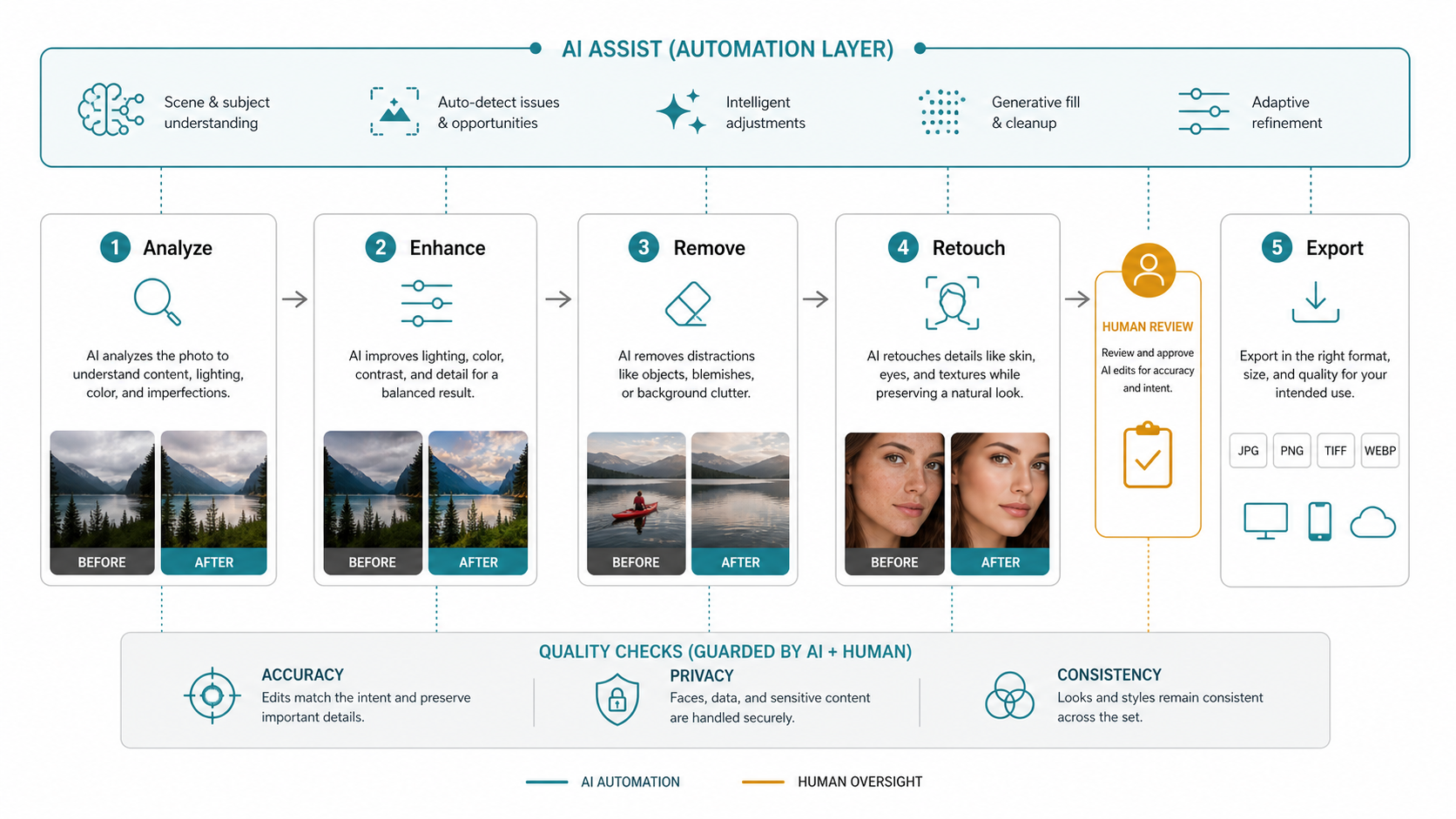
AI photo editors help by automating tedious edits: background removal, object cleanup, sky replacement, skin retouching, denoise, sharpening, upscaling, color suggestions, and content-aware fills. The best AI features work as assistants. They speed up the first pass while leaving the user in control of the final look.
For product teams, AI photo editing also introduces new decisions: data privacy, model quality, review controls, usage limits, cost per generation, and failure states. Teams planning AI-assisted editing workflows can compare the effort against expected savings with the AI Automation ROI Calculator. For deeper product builds, generative AI development support can help connect model capabilities with a reliable application workflow.
What Are The Best Portrait Photo Editing Apps?
Portrait editing apps should improve the image without making the subject look artificial. Look for skin smoothing with intensity control, blemish removal, lighting correction, eye enhancement, background blur, face-aware masks, and natural color handling. Lensa and Photoshop Express are common choices for portrait-focused workflows, while Lightroom can be better when the portrait is part of a broader photography workflow.
Be careful with one-tap retouching. Over-smoothing, face reshaping, or unrealistic filters can reduce trust in the final image. A good portrait editor should make adjustments reversible and visible enough that the user understands what changed.
Best Photo Editing Apps For Beginners
Beginners should start with apps that make the first successful edit easy. Google Photos is a good starting point for simple corrections. Snapseed is a strong next step because it offers professional-feeling tools without a subscription. PicsArt can work well for beginners who care more about creative posts than photographic accuracy, especially when templates and tutorials are easy to find.
The best beginner app is the one that teaches through the workflow. Clear before/after previews, named presets, simple sliders, undo history, and short explanations help new editors build confidence without reading a manual.
Android Vs iPhone: Does Platform Matter?
Platform matters less than it used to, but it still affects device performance, camera pipeline, file access, cloud sync, and export behavior. iPhone users may benefit from predictable device and camera behavior across fewer models. Android users get broader device choice, but editing apps must handle more screen sizes, chipsets, camera outputs, and storage patterns.
If you are choosing an app, check whether the features you need are available on your device, not just whether the brand exists on Android or iOS. If you are building an app, test image import, preview speed, memory use, and export quality on realistic low-end and high-end devices.
What Product Teams Can Learn From Photo Editing Apps
Photo editing apps are useful examples for any mobile product team because they combine heavy media processing with a simple user journey. The strongest products make complex operations feel immediate: importing a photo, trying a preset, comparing before and after, refining details, and exporting without confusion.
Before adding advanced features, define the main user path. A beginner wants a great result fast. A creator wants style and shareability. A photographer wants control and file quality. A business user wants repeatability. That is also why a supporting guide such as Photo Editing Apps: Empowering Mobile Photographers can help teams compare app categories before deciding what to build.
Photo Editing App Selection Checklist
- Start with your primary use case: quick fixes, portraits, social content, professional photography, or product content.
- Test the free workflow first: import, edit, undo, compare, save, and export before paying.
- Check export quality: make sure resolution, compression, color, and format options fit your final destination.
- Evaluate AI carefully: useful AI should save time without hiding changes or damaging image quality.
- Look for learning support: presets, examples, tutorials, and tooltips matter when users are new.
- Consider privacy: understand whether images are processed locally, in the cloud, or used to improve models.
Summary
The best photo editing app depends on the user and the workflow. Lightroom is strong for serious editing and RAW control. Snapseed is a capable free editor. PicsArt is useful for creative social visuals. Google Photos handles quick everyday fixes. AI editors are valuable when they automate repetitive work without removing user control.
For product teams, the lesson is broader: great editing apps succeed because they simplify a complex workflow. The winning experience is not the longest feature list. It is the clearest path from photo import to a result the user is proud to save, share, or use in their business.